Learning the Interface
First Launch
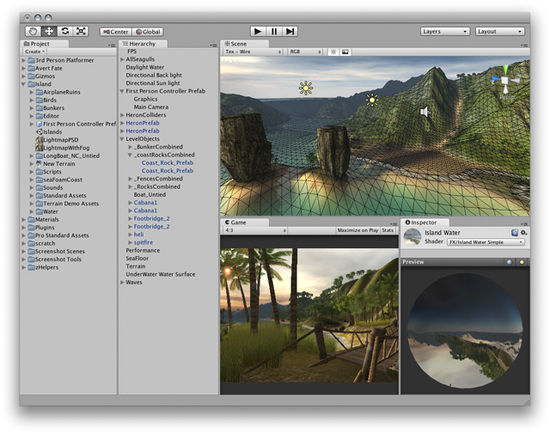
Let's begin learning Unity. If you have not yet opened Unity, you can find it inside on Mac, or on Windows. When it launches for the first time, the Unity Editor will appear:
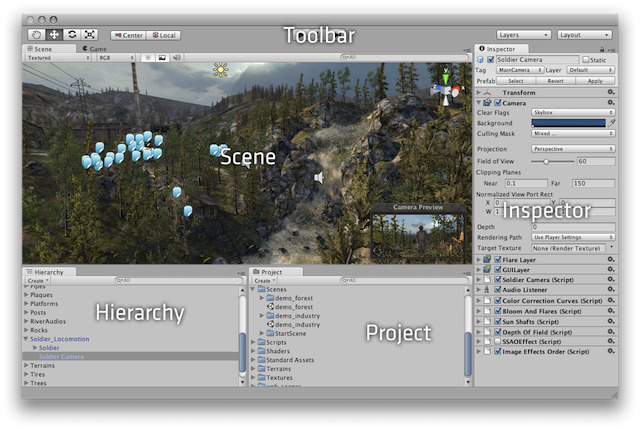
By default, the "Islands" scene of the Tropical Paradise project will appear Take your time to look over the Unity Editor interface and familiarize yourself with it. The Main Editor Window is made up of several Tabbed Windows, called Views. There are several types of Views in Unity, each with a specific purpose.
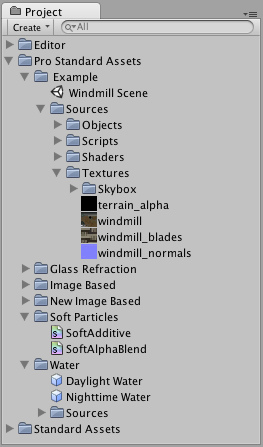
Now we'll look at each View in detail.
Project View
Every Unity project contains an Assets folder. The contents of this folder are presented in the Project View. This is where you store all the assets that make up your game, like scenes, scripts, 3D models, textures, audio files, and Prefabs. If you right-click on any asset in the Project View, you can choose () to actually see the asset itself in your file system.
Important Note: You should never move project assets around using the OS since this will break any metadata associated with the asset. Always use the Project View to organize your assets.
To add assets to your project, you can drag any file from your OS into the Project View, or use . Your asset is now ready to be used in your game. For more information about working with assets, skip ahead to the Asset Workflow section of the manual.
Scenes are also stored in the Project View. Think of these as individual levels. For example, the Islands Scene loads by default when Unity first launches. To create a new Scene, use ( on Windows). To save the current Scene into the Project View, use ( on Windows).
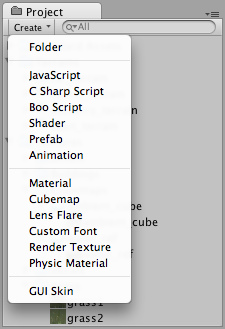
Some game assets need to be created from within Unity. To do this, use the drop-down, or .
The Create drop-down This will allow you to add scripts, Prefabs, or folders to keep your project organized. You can rename any asset/folder by pressing on Mac, or on Windows, or with two paced clicks on the asset name. If you hold the key while you expand or contract a directory, all subdirectories will also be expanded or contracted.
Hierarchy
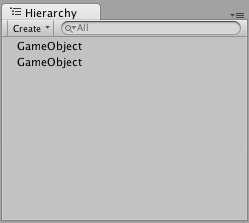
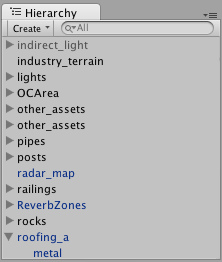
The Hierarchy contains every GameObject in the current Scene. Some of these are direct instances of asset files like 3D models, and others are instances of Prefabs -- custom objects that will make up much of your game. You can select and Parent objects in the Hierarchy. As objects are added and removed from the scene, they will appear and disappear from the Hierarchy as well.
Parenting
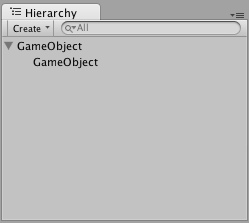
Unity uses a concept called Parenting. To make any GameObject the child of another, drag the desired child onto the desired parent in the Hierarchy. A child will inherit the movement and rotation of its parent. You can now expand and contract the parent to see its children in the Hierarchy without affecting your game.
Two unparented objects

One object parented to another To learn more about Parenting, please review the Parenting section of the Transform Component page.
Toolbar

The Toolbar consists of five basic controls. Each relate to different parts of the Editor.

Transform Tools -- used with the Scene View

Transform Gizmo Toggles -- affect the Scene View display

Play/Pause/Step Buttons -- used with the Game View

Layers Drop-down -- controls which objects are displayed in Scene View
Layout Drop-down -- controls arrangement of all Views
Scene View

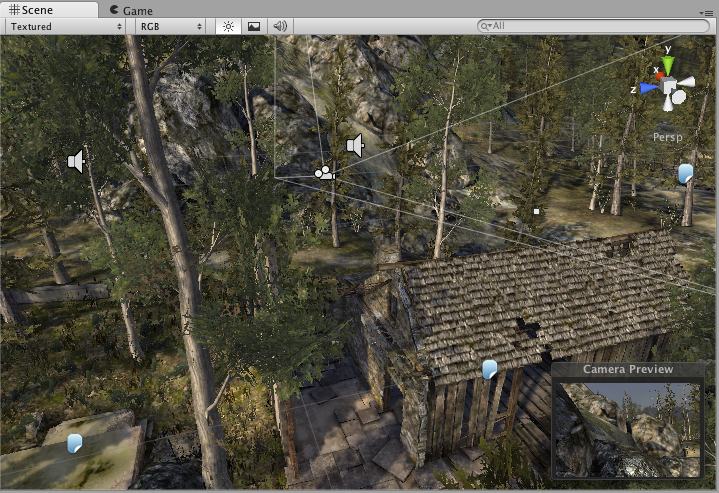
The Scene View Scene View is your interactive sandbox. You will use the Scene View to select and position environments, the player, the camera, enemies, and all other GameObjects. Maneuvering and manipulating objects within the Scene View are some of the most important functions in Unity, so it's important to be able to do them quickly. Here's how:
- Hold the right mouse button to enter Flythrough mode. This turns your mouse and keys into quick first-person view navigation.
- Select any GameObject and press the key. This will center the Scene View and pivot point on the selection.
- Hold and click-drag to orbit the camera around the current pivot point. If you're using three-button mouse you can also:
- Hold and middle click-drag to drag the Scene View camera around.
- Hold and right click-drag to zoom the Scene View. This is the same as scrolling with your mouse wheel.

If you are using a one-button mouse, you might find more use in the Hand Tool (shortcut: ).

Hold and click-drag to orbit.
Hold ( on Windows) and click-drag to zoom.
Positioning GameObjects
When building your games, you'll place lots of different objects in your game world. To do this use the Transform Tools in the Toolbar to Translate, Rotate, and Scale individual GameObjects. Each has a corresponding Gizmo that appears around the selected GameObject in the Scene View. You can use the mouse and manipulate any Gizmo axis to alter the Transform Component of the GameObject, or you can type values directly into the number fields of the Transform Component in the Inspector.
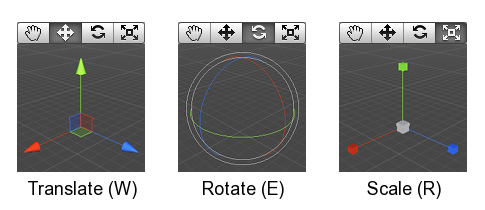
- While dragging any Gizmo Axis, you can hold the key ( on Windows) to snap to increments defined in the Snap Settings.
- You can change the Snap Settings from
- Click and drag in the center of the Gizmo to manipulate the object on all axes at once.
- While dragging in the center, you can hold ( on Windows) to snap the object to the intersection of any Collider. This makes precise positioning of objects incredibly fast.
- If you have a three button mouse, you can click the middle button to adjust the last-adjusted axis (which turns yellow) without clicking directly on it.
- Be careful when using the scaling tool, as non-uniform scales (e.g. 1,2,1) can cause unusual scaling of child objects.
- For more information on transforming GameObjects, please view the Transform Component page.
The Gizmo Display Toggles are used to define the location of any Transform Gizmo.

Gizmo Display Toggles
- Position:
- will position the Gizmo at the center of the object's rendered bounds.
- will position the Gizmo at the actual pivot point of a Mesh.
- Rotation:
- will keep the Gizmo's rotation relative to the object's.
- will clamp the Gizmo to world space orientation.
Scene Gizmo
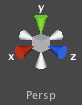
In the upper-right corner of the Scene View is the Scene Gizmo. This displays the Scene Camera's current orientation, and allows you to quickly modify the viewing angle. You can click on any of the arms to snap the Scene Camera to that direction and change it to Isometric Mode. While in Isometric Mode, you can right-click drag to orbit, and Alt-click drag to pan. To exit this mode, click the middle of the Scene Gizmo. You can also Shift-click the middle of the Scene Gizmo any time to toggle Isometric Mode.

Perspective mode.

Isometric mode. Objects do not get smaller with distance here!
Scene View Control Bar
The first drop-down is for choosing a Draw Mode. You can choose to view the entire scene Textured, Wireframe, or Textured with Wireframe overlay. This has no effect on your game when it is published.
Draw Mode drop-down The next drop-down is for choosing one of four Render Modes. You can choose to fill the Scene View with , , , or . Again, this will not affect your published game.
Render Mode drop-down
- RGB is simply all the colors of your game rendered as normal.
- Alpha will render all alpha values for fine-tuning transparency or fullscreen effects that make use of alpha values.
- Overdraw will indicate how much of the screen is consuming overdraw time.
- Mipmaps shows ideal texture sizes -- red means the particular texture is too large, and blue means the texture could be larger. Of course ideal texture sizes depend on the resolution the game will run.
Next, we have two buttons: Scene Lighting and Game Overlay.
Enabling Scene Lighting will override the default Scene View lighting with whatever lights you have positioned to create your final light setup. Game Overlay will enable items like Skyboxes and GUI Elements in the Scene View.
Game View
The Game View is rendered from the Camera(s) in your game. It is representative of your final, published game. You will need to use one or more Cameras to control what the player actually sees when they are playing your game. For more information about Cameras, please view the Camera Component page.
Play Mode
Use the buttons in the Toolbar to control the Editor Play Mode and see how your published game will play. While in Play mode, any changes you make are temporary, and will be reset when you exit Play mode. The Editor UI will darken to remind you of this.
Game View Control Bar
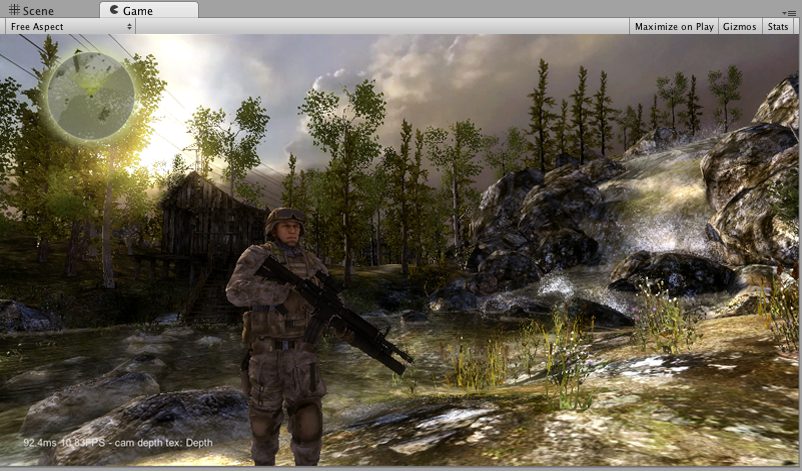
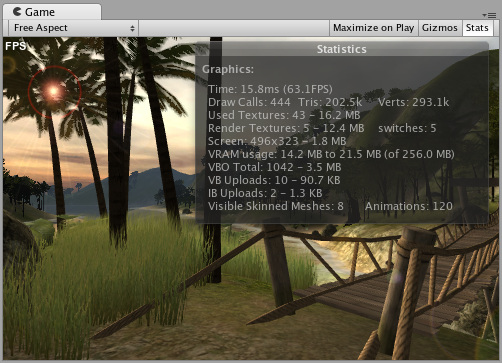
The first drop-down on the Game View control bar is the Aspect Drop-down. Here, you can force the aspect ratio of the Game View window to different values. It can be used to test how your game will look on monitors with different aspect ratios.
Further to the right is the toggle. While enabled, the Game View will maximize itself to 100% of your Editor Window for a nice full-screen preview when you enter Play mode.
Continuing to the right is the toggle. While enabled, all Gizmos that appear in Scene View will also be drawn in Game View. This includes Gizmos drawn using any of the Gizmos class functions.
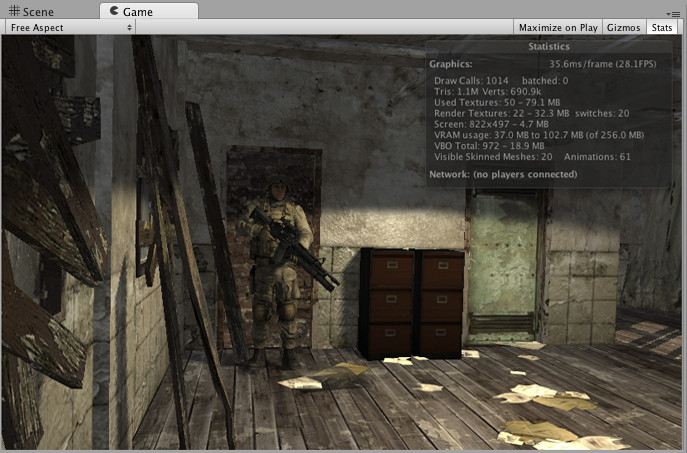
Finally we have the button. This shows Rendering Statistics window that is very useful for Optimizing Graphics Performance.
Inspector
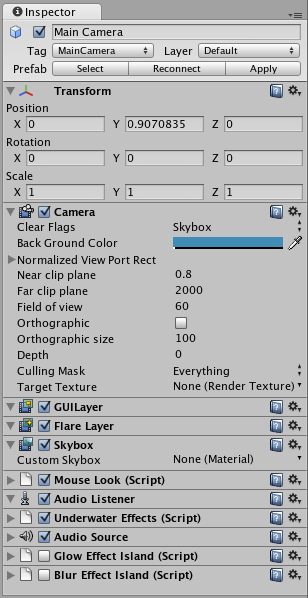
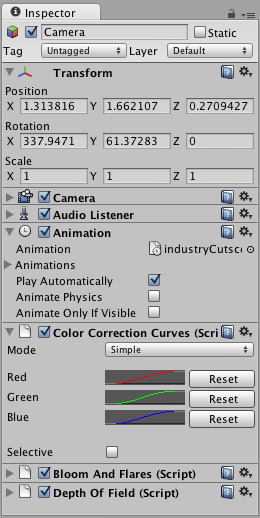
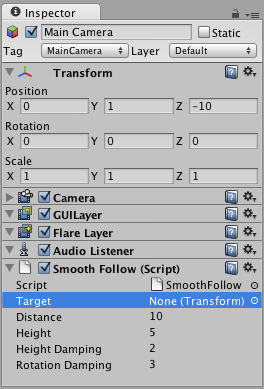
Games in Unity are made up of multiple GameObjects that contain meshes, scripts, sounds, or other graphical elements like Lights. The Inspector displays detailed information about your currently selected GameObject, including all attached Components and their properties. Here, you modify the functionality of GameObjects in your scene. You can read more about the GameObject-Component relationship, as it is very important to understand.
Any property that is displayed in the Inspector can be directly modified. Even script variables can be changed without modifying the script itself. You can use the Inspector to change variables at runtime to experiment and find the magic gameplay for your game. In a script, if you define a public variable of an object type (like GameObject or Transform), you can drag and drop a GameObject or Prefab into the Inspector to make the assignment.
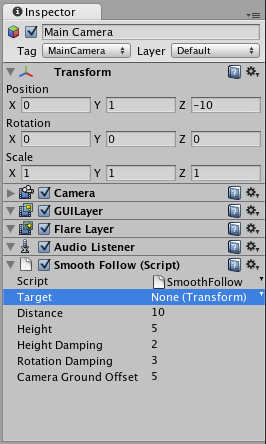
Click the question mark beside any Component name in the Inspector to load its Component Reference page. Please view the Component Reference for a complete and detailed guide to all of Unity's Components.
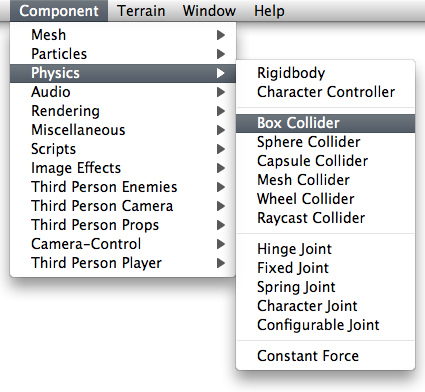
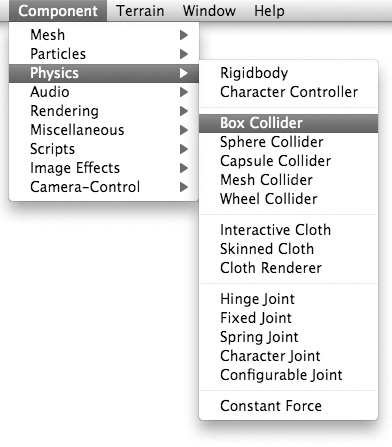
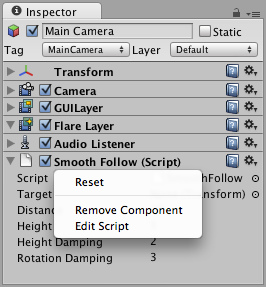
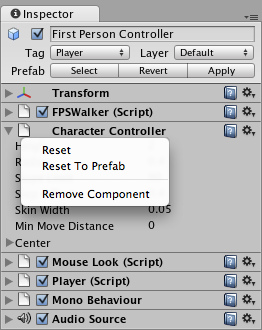
Add Components from the menu You can click the tiny gear icon (or right-click the Component name) to bring up a context menu for the specific Component.
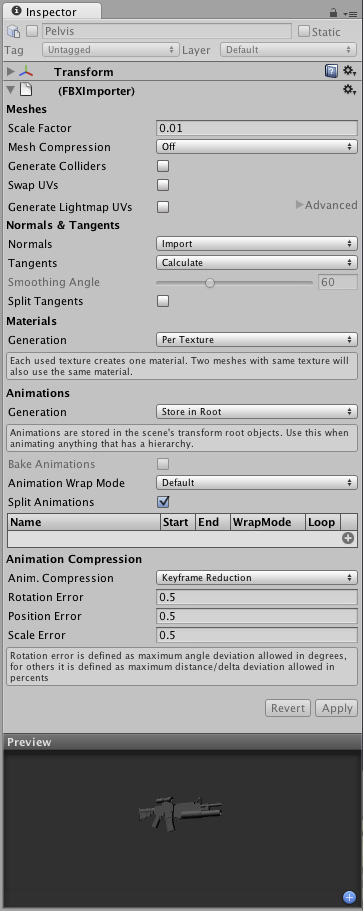
The Inspector will also show any Import Settings for a selected asset file.
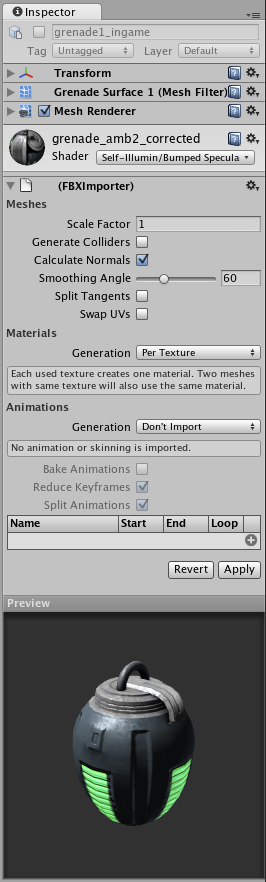
Click to reimport your asset.
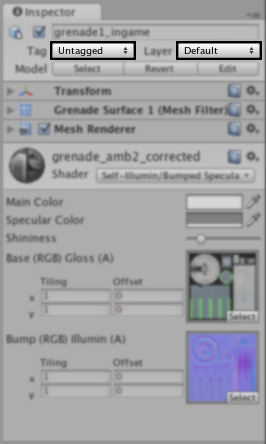
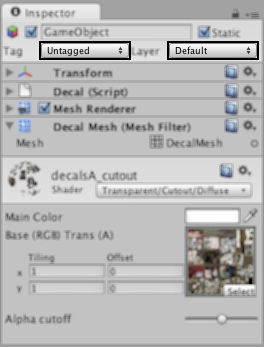
Use the drop-down to assign a rendering Layer to the GameObject. Use the drop-down to assign a Tag to this GameObject.
Prefabs
If you have a Prefab selected, some additional buttons will be available in the Inspector. For more information about Prefabs, please view the Prefab manual page.
Animation View
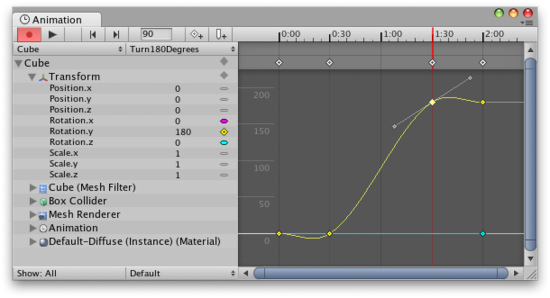
The new Animation View in Unity 2.6 is a powerful animation editing tool. For more information on using the Animation View, please read the Animation View Guide
Status Bar
The Status Bar at the bottom of the Editor serves multiple purposes. It will display any compile errors or Debug log output. If there is a problem with your game, keeping an eye on the Status Bar is the best way to find the error. You can double-click on the Status Bar to bring up the Console window, which has all script or run-time errors visible.
Console
Double-clicking an error in the Status Bar or choosing will bring up the Console.
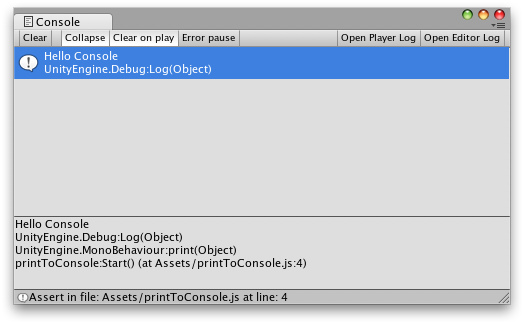
The Console shows messages, warnings, errors, or debug output from your game. You can define your own messages to be sent to the Console using either or . You can double-click any message to be taken to the script that caused the message. You also have a number of options on the Console Toolbar.

Most of the options in the Console Toolbar are self-explanatory, but one thing should be made clear. When is enabled, will cause the pause to occur but will not.
Customizing Your Workspace
You can customize your Layout of Views by click-dragging the Tab of any View to one of several locations. Dropping a Tab in the Tab Area of an existing window will add the Tab beside any existing Tabs. Alternatively, dropping a Tab in any Dock Zone will add the View in a new window.
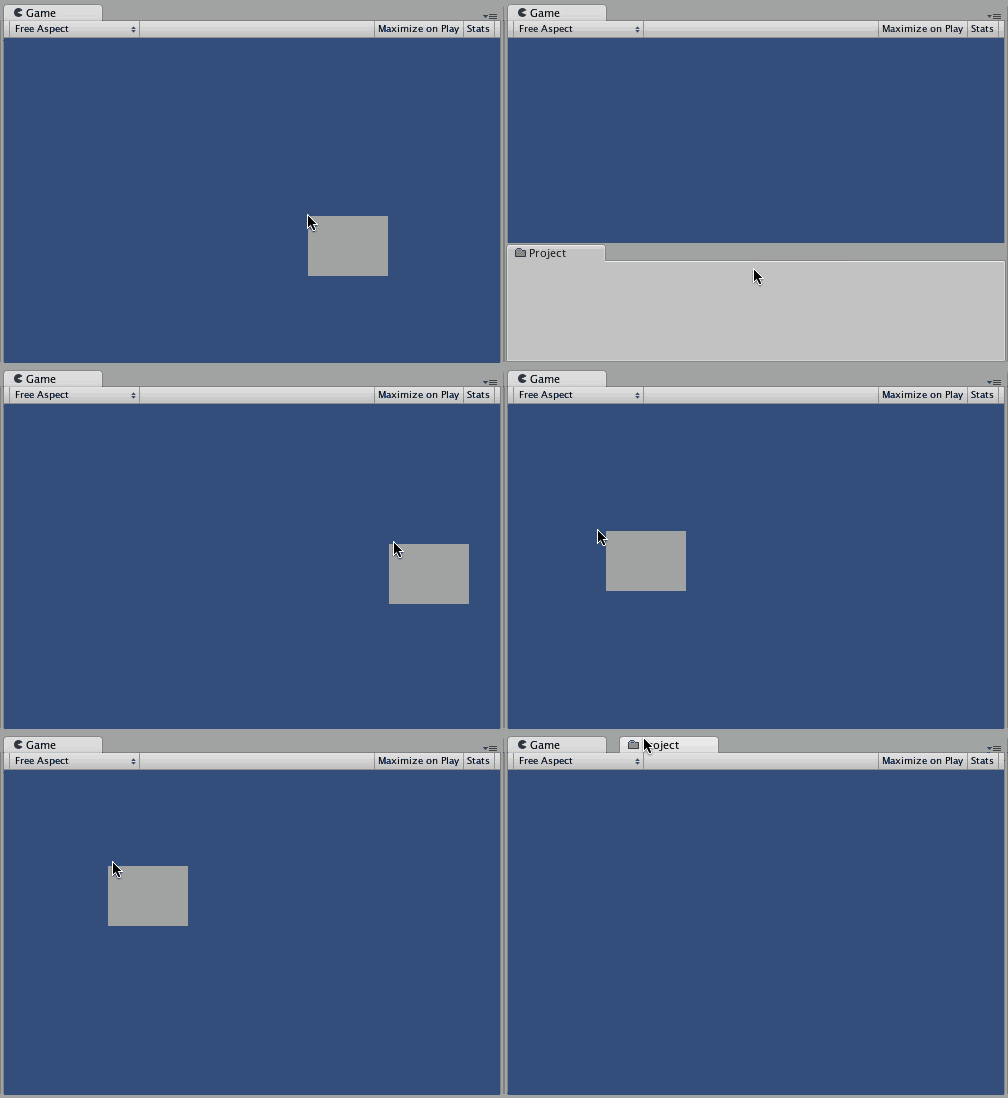
Views can be docked to the sides or bottom of any existing window Tabs can also be detached from the Main Editor Window and arranged into their own floating Editor Windows. Floating Windows can contain arrangements of Views and Tabs just like the Main Editor Window.
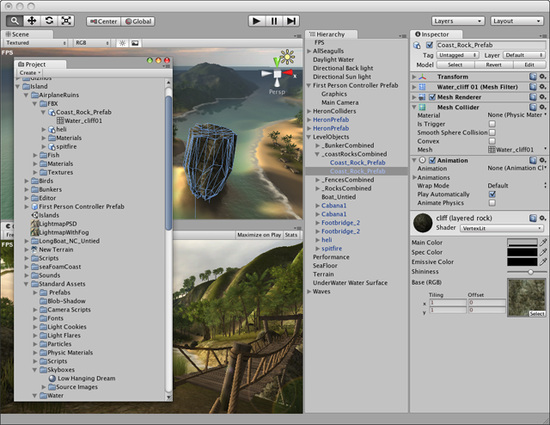
Floating Editor Windows are the same as the Main Editor Window, except there is no Toolbar When you've created a Layout of Editor Windows, you can Save the layout and restore it any time. You do this by expanding the Layout drop-down (found on the Toolbar) and choosing . Name your new layout and save it, then restore it by simply choosing it from the Layout drop-down.
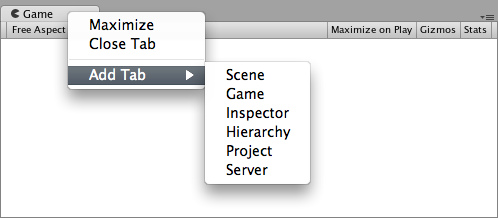
A completely custom Layout At any time, you can right-click the tab of any view to view additional options like Maximize or add a new tab to the same window.
me wrote: thank for unity :D



Hmmm it was ok.
nice
nice