 There is a community patch for Elite Force 2 to see the Internet Servers again for download.
This patch will modify the ef2.exe for you, like shown in this tutorial, which you will no longer do your self with this patch installed.
On March 2010 the Star Trek Elite Force II Master Server disappeared the first time, it was then when GSIO, a Member of the Elite Force II community created a new Master Server. This new Community Master Server is now hosted by the SFU Clan.
You will need to make adjustments for the game to accept the alternative Master-Server!
This Article explains you how to make these alterations. These changes will make your computer use a different IP for the address of the Activision ef2 master-server, this is necessary since the game offers no option to change the master server from within the game it self.
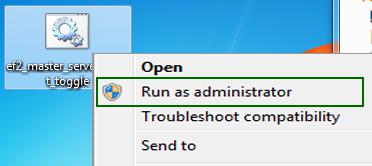
The easiest method for all Windows Users would be to run the EF2 Master-Server Toogle fix patch.
- Download and unzip the tool: Moddb.com
- You need to run that tool as Administrator
- You need to make sure your Virus Scanner does not block access to the file:
Windows\System32\drivers\etc\hosts - You need to make sure your Firewall does not block access to the file:
Windows\System32\drivers\etc\hosts - Follow the instructions of the tool
Otherwise the tool can not modify the hosts file and you will still not be able to see the new master server.
The next method would only require some attention, patience and a HexEditor, here are two for Windows:
Chmaas.handshake.de
Mh-nexus.de
- Make a backup copy of your ef2.exe
- Open the ef2.exe with the HexEditor
- Search for the string: ef2master
- You should see the following string: ef2master.activision.com

- That string you will have to overwrite with: master.hazardmodding.com or ef2master.sfu-server.de
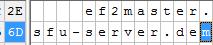
- You will notice that the m of activision.com will remain it has to be overwritten
by typing 00 on the HEXCode side where it says: 6D
- Save the changes to the ef2.exe
For Windows (XP,Vista,Win7)
- You need to make sure your Virus Scanner does not block access to the file:
Windows\System32\drivers\etc\hosts - You need to make sure your Firewall does not block access to the file:
Windows\System32\drivers\etc\hosts - Open the file named "hosts" in "C:/windows/system32/drivers/etc"
(assuming you installed windows on drive "c"). - Make sure you use Notepad.exe or any else text editor to edit the hosts file,
Wordpad or Word or Office will !!! NOT !!! work! - Scroll down to the bottom line and add the following line:
master.hazardmodding.com ef2master.activision.com
or
88.198.203.25 ef2master.activision.com - Save the file, and close the text editor.
- Open the hosts file again and check if it has been modified,
otherwise make sure that your firewall or Virus-scanner do
not block acess to the hosts file.
For MAC OS-X 10.2 and above
- You need to make sure your Virus Scanner does not block access to the file:
/private/etc/hosts - You need to make sure your Firewall does not block access to the file:
/private/etc/hosts - Access the TERMINAL
- Browse the directory using the command string:
cd /private/etc - Open the hosts file in the nano text editor:
sudo nano hosts - Scroll down to the bottom line and add the following line:
master.hazardmodding.com ef2master.activision.com
or
88.198.203.25 ef2master.activision.com - Press Control and X and save the file with administrative privileges.
- Open the hosts file again and check if it has been altred
Reboot your Operating System if necessary.
If you need help Contact me or post in the comments here.






The Master Server IP changed, this article was updated on 2021.09.12.